
Cloud-based online QES (for a legal entity representative)
Go to your DepositSign account and click “Get KEP”
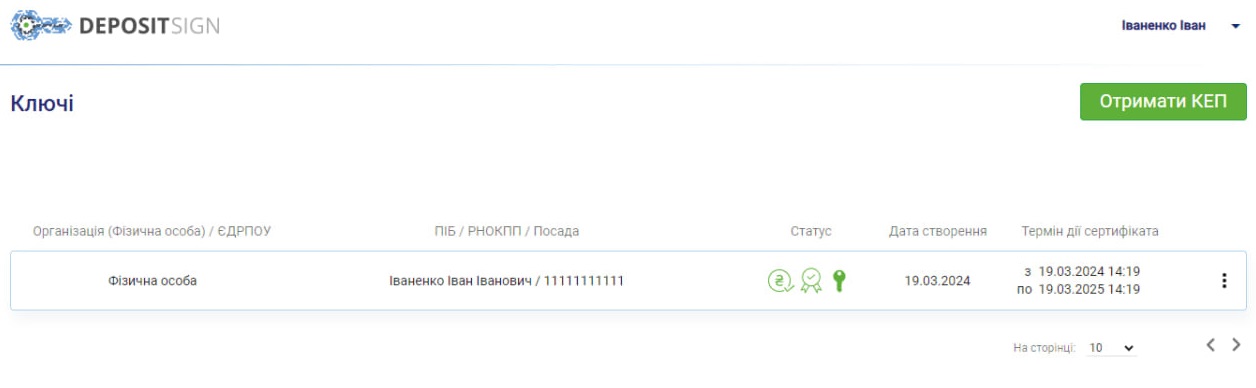
Attention! This method of obtaining a QES can be used by users of the Diya application who have a valid ID card or passport of a citizen of Ukraine, as well as if the services are paid from the current account of a legal entity.
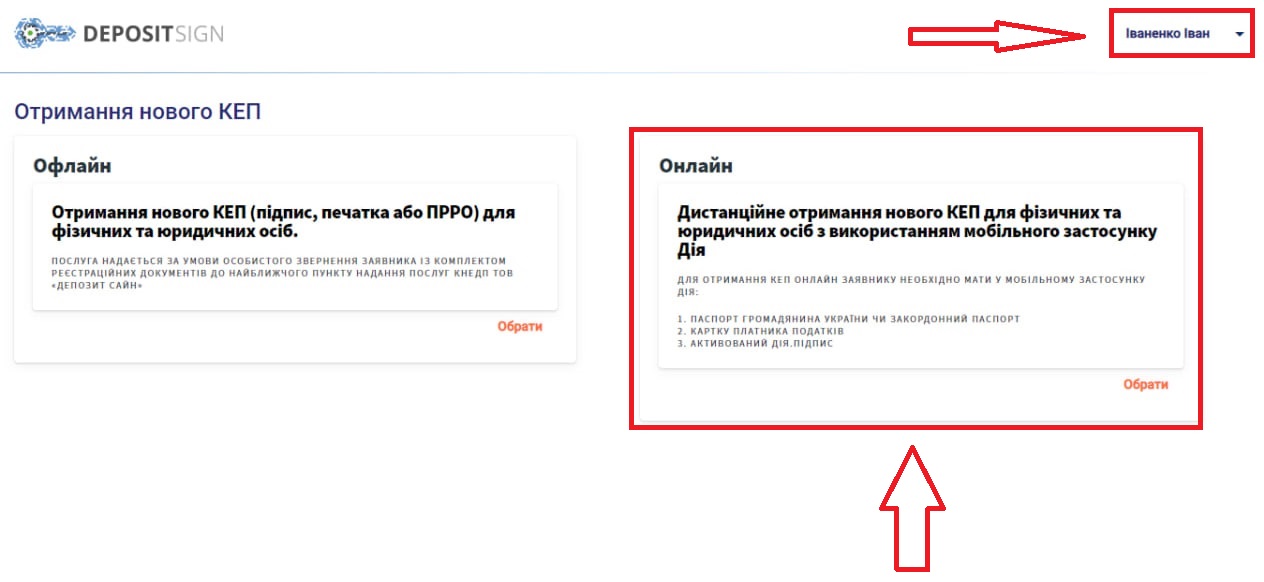
Click “Select” in the “Online” section.
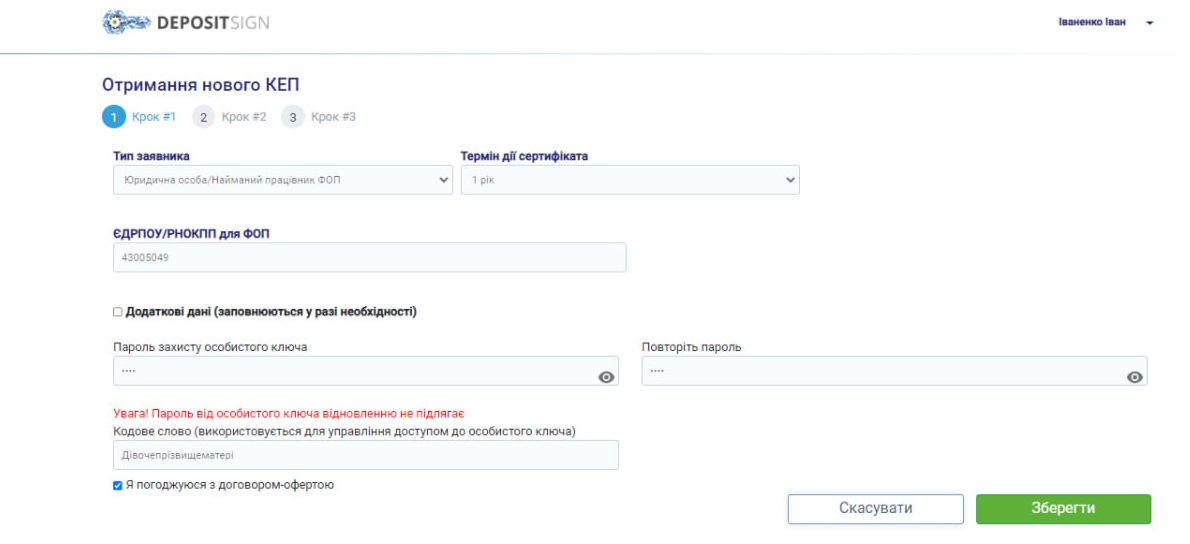
Step 1:
- In the “Certificate validity period” field, select the certificate validity period you need (1 or 2 years);
- In the “EDRPOU” field, enter the organization code in the Unified State Register of Legal Entities, Individual Entrepreneurs and Public Organizations.
- In the “Personal key protection password” and “Repeat password” fields, specify the desired password for the electronic signature. Specify the combination that you consider convenient for signing and secure. There are no password complexity requirements. This password cannot be recovered in the future.
- In the “Password” field, specify the word that will be used to control access to the private key. Ukrainian letters and numbers are allowed. Such a word can be, for example, the mother’s maiden name.
- Additional data (optional details).
If necessary, you can specify additional optional data.
To do this, check the box in front of the phrase “Additional data” and fill in the required fields.
Please note that, for example, when specifying data in the “Position” field, the name of the position you indicate must correspond to the name of the position to which you were appointed by the relevant order at the enterprise. The field name «Посада» cannot exceed 64 characters, logical abbreviations are allowed.

6. To proceed to the next step, click “Save”.
Step 2:
1. Open the Diya application on your phone and scan the QR code on the screen of your device. If you are using your phone to receive a KEP from DepositSign, click on the QR code and our service will automatically redirect you to the Diya application for further registration of the KEP.
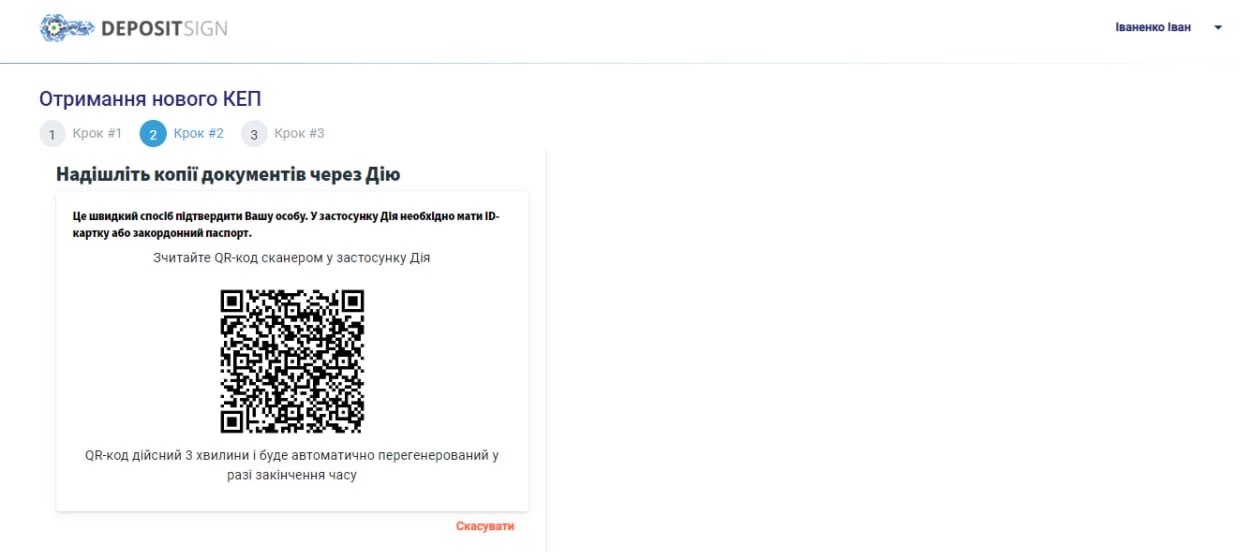
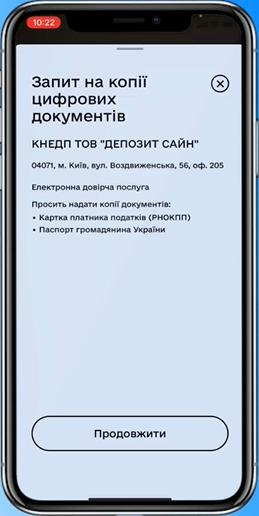
2. In the Diya application, read the request for copies of digital documents and click “Continue”. Wait a few seconds for the response to the request to be generated.
3. In the Diya application, by checking the appropriate box, confirm the provision of copies of digital documents to KNEDP LLC “DEPOSIT SIGN” (DepositSign) and click “Send via Diya”.
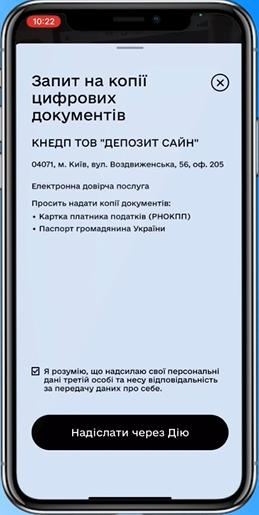
4. You can then click “Continue” to return to the main page of the Diya application and continue working in your personal account “DepositSign”.
Step 3:
After successful transfer of copies of digital documents, the user will be displayed in his personal account “DepositSign” a registration statement, where he can see the registration data that will be contained in the new qualified DepositSign certificates.
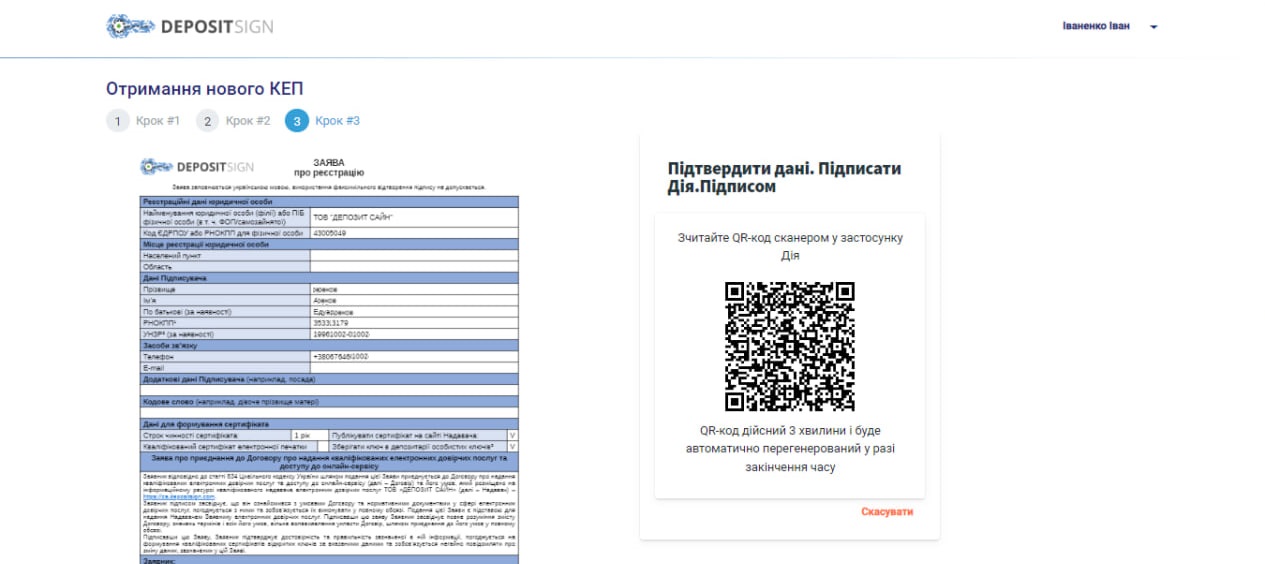
Open the Diya application and scan the QR code located next to the Registration Statement to confirm the data using Diya.Signature. If you use your phone to receive a KEP, click on the corresponding QR code and the service will automatically redirect you to the Diya application for further signing of the application using Diya.Signature.
After successfully signing the application, you will have the opportunity to generate an invoice for payment.
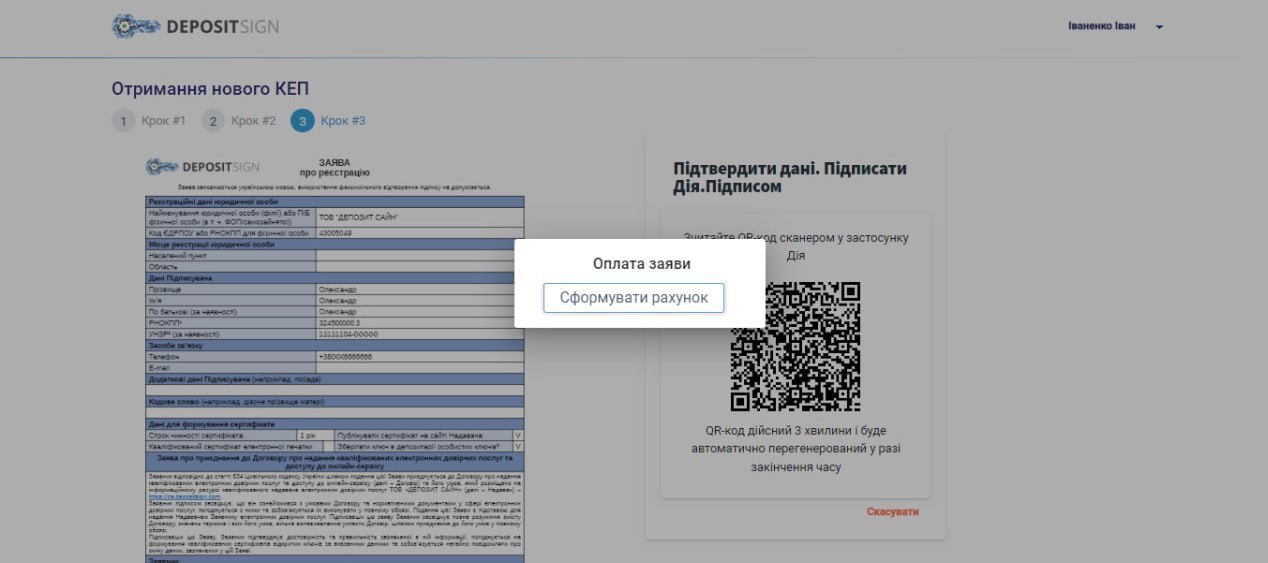
Click “Generate Invoice”. The service will automatically generate a special invoice for payment in the “.pdf” file format, which will be downloaded to your device.
ATTENTION!
1. Payment must be made exclusively from the current account of the relevant legal entity.
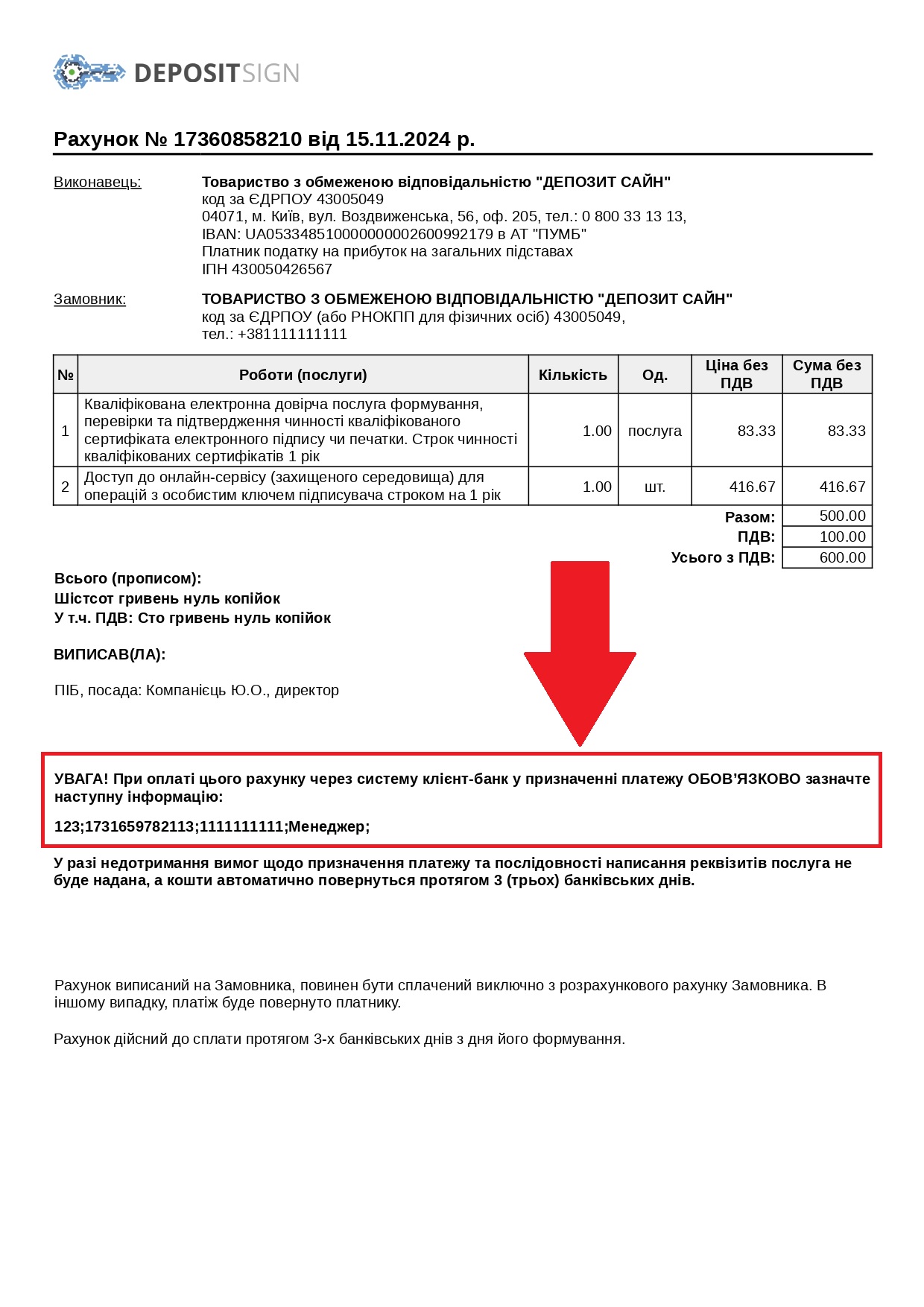
2. When paying an invoice through the client-bank system, it is necessary to indicate the purpose of the payment, as indicated in the corresponding payment invoice.
Example of an invoice for payment of services (pay attention to the wording of the purpose of the payment):
After the payment invoice is generated, a corresponding record of the created application for obtaining a qualified electronic signature certificate will appear in your personal account.
The application will have the status “Will be certified after payment”.
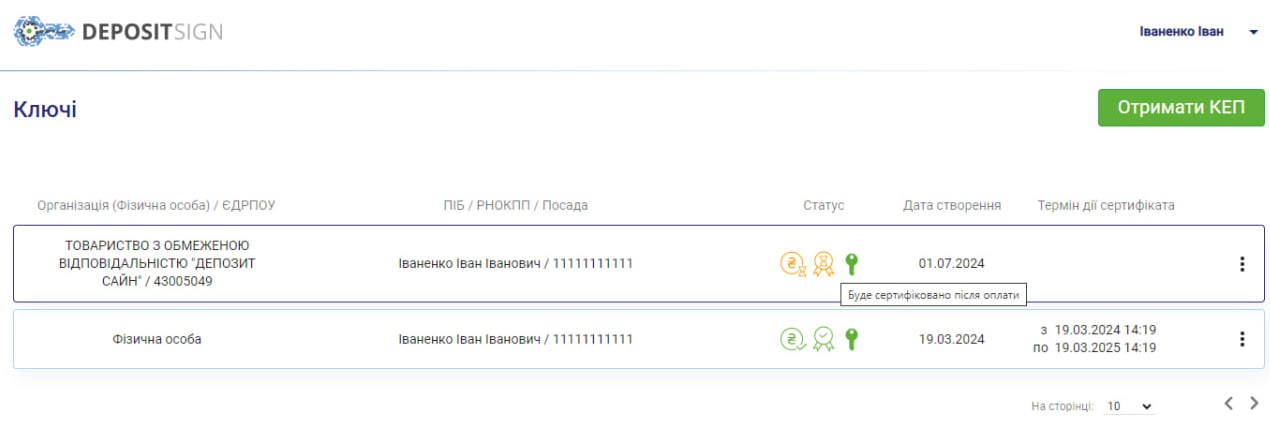
After the funds are received into the current account of LLC “DEPOSIT SIGN”, the status will change to “certified” and you will be able to use your KEP.
Additionally, the system will inform the user by SMS about the successful generation of KEP certificates.